



TCGplayer Integration with Quick Ship
Process TCGplayer orders in seconds. Upload your TCGPlayer packing slips to create 4x6 packing slips and purchase shipping labels through EasyPost.
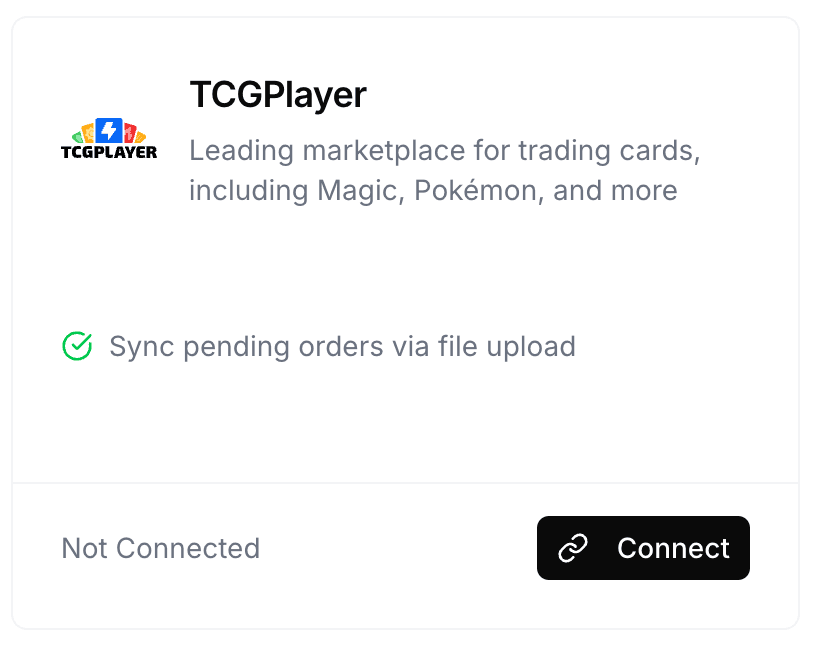
Connect Your TCGplayer Account
Go to the Connections page in Quick Ship and click Connect. Type in your store's name and/or upload your logo. This will be printed on the packing slips to increase brand recognition. For best results make sure your logo is black & white with a transparent background so it's easily printed by a thermal printer.
You can click Settings to update your store name and logo if needed later.
Download TCGplayer Orders
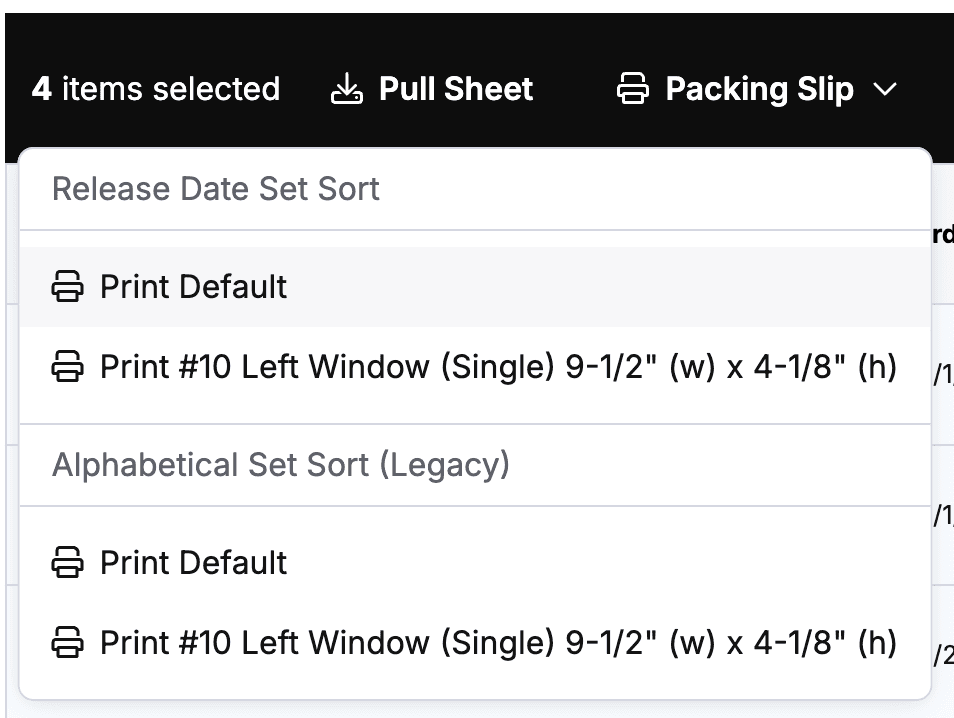
You'll need to download your TCGplayer orders as PDFs to continue. Go to TCGplayer and navigate to your TCGplayer Orders page. Make sure you are using TCGplayer's New UI. Select the orders you want to process. Once you've selected the orders you want to process, click Packing Slip Print Default.
This will download a PDF file with all your packing slips. You'll need this to upload to Quick Ship in the next step.
Upload Packing Slips & Pick Your Orders
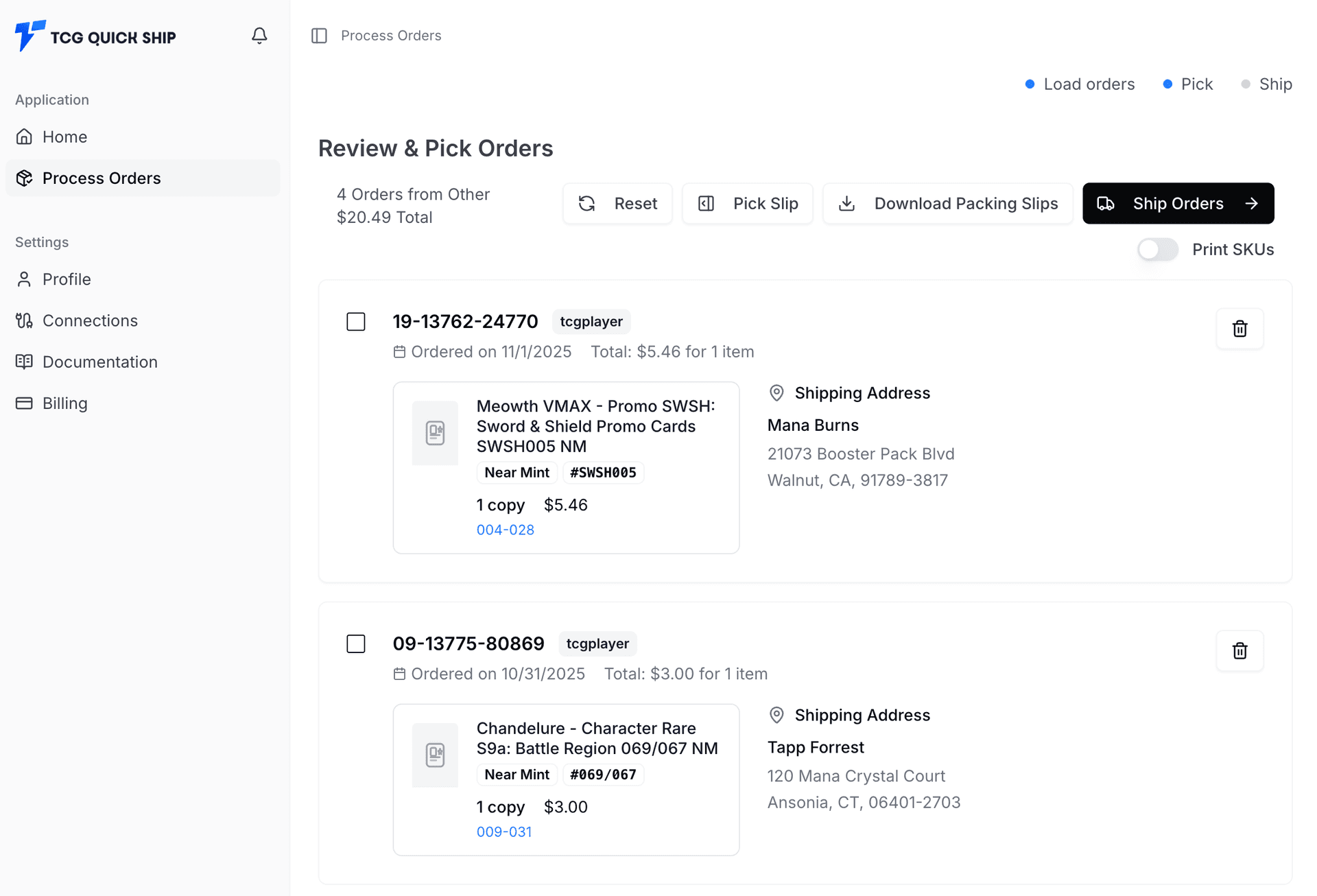
Back in Quick Ship, navigate to Process Orders . Here click Upload TCGplayer PDFs and upload the orders you downloaded from the previous step. Quick Ship will process these orders and you'll be able to review them.
Click the Pick Slip button to slide out the pick list. You can sort the cards by any column you need.
Purchase Labels & Ship
Once you've reviewed your orders, click the Ship Orders button to continue to the next section.
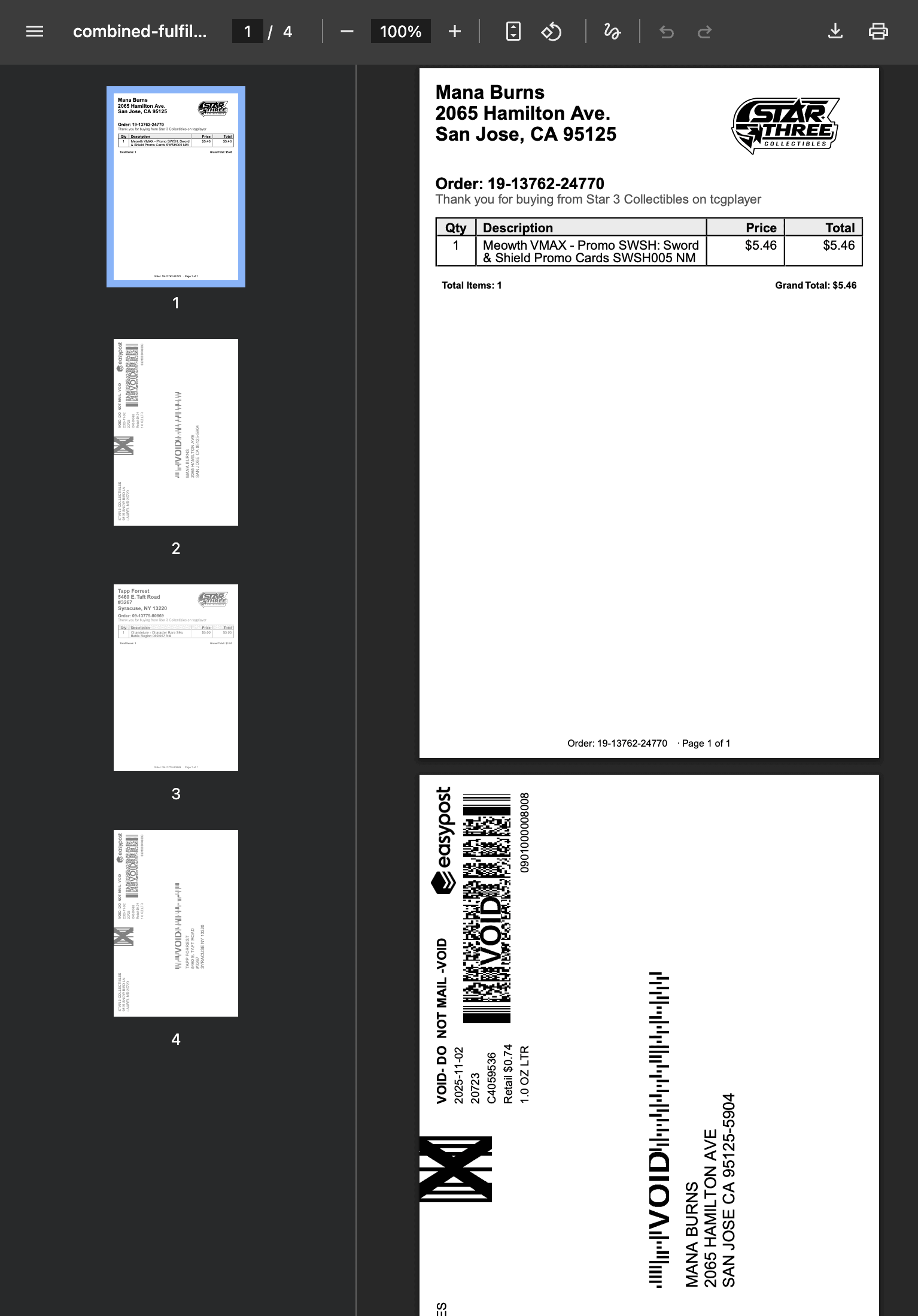
Once you've either purchased your shipping labels from EasyPost or downloaded them you can then download a combined PDF with both the packing slips and shipping labels. The PDF will be collated to make it easier for you to print!
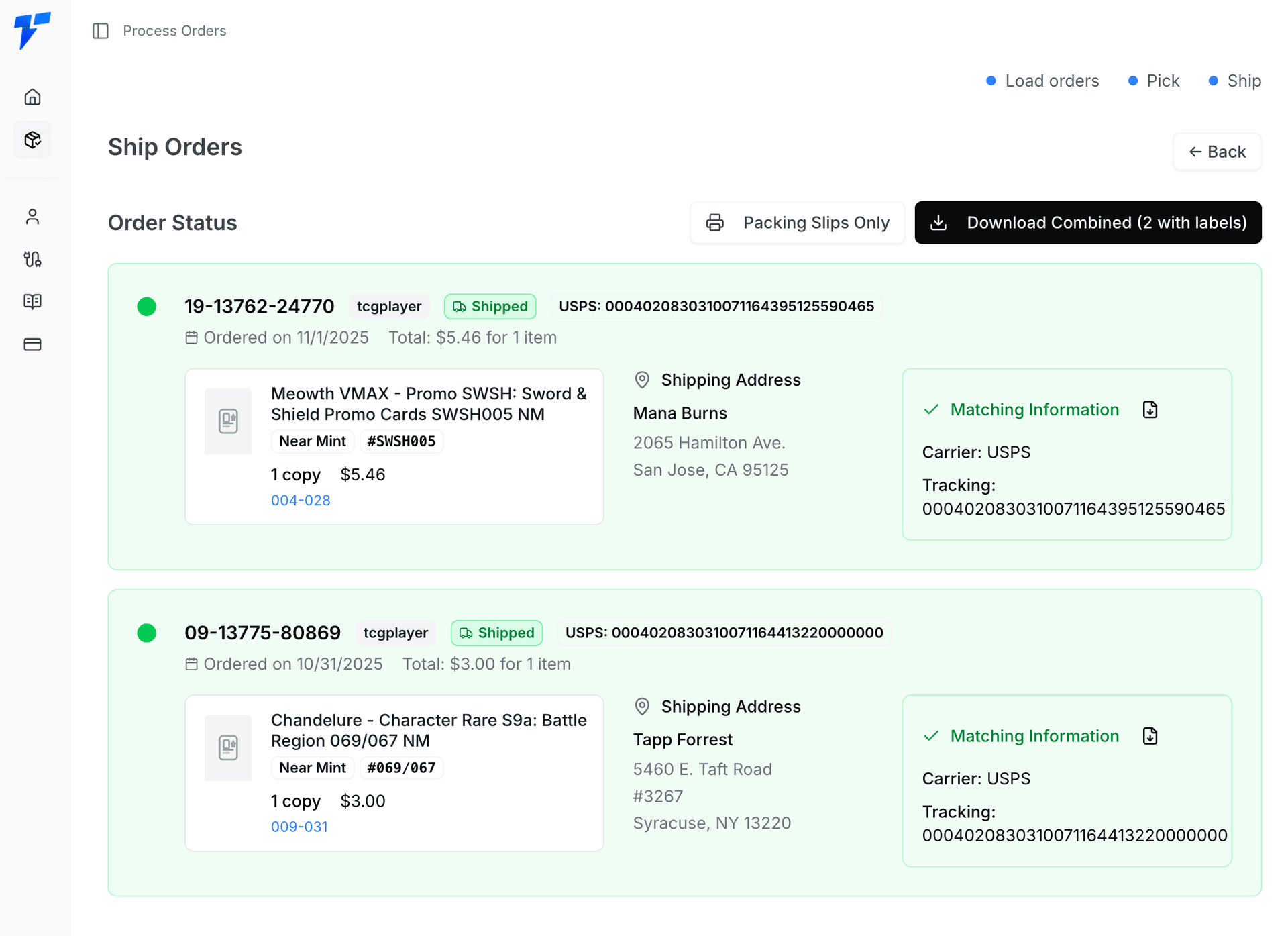
Download the combined PDF or the packing slips and shipping labels separately. Here is an example of the combined PDF:
Export Fulfillment CSV & Import to TCGplayer
After processing your batch, click the Export CSV for TCGplayer button in the batch actions. This will generate a CSV file containing your order numbers, tracking numbers, and carrier information.
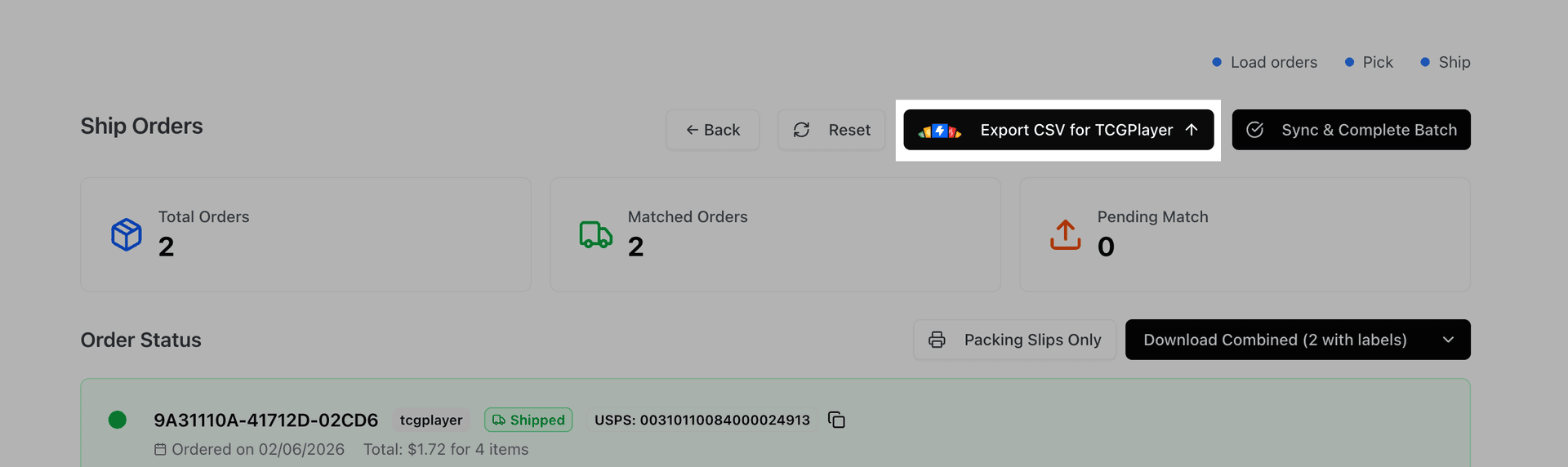
Finally, go to the TCGplayer Seller Portal, navigate to Orders, and select Import Tracking. Upload the CSV file you downloaded from Quick Ship, and your orders will be marked as shipped automatically!
With TCG QuickShip Link paired, you can skip the CSV: the batch's TCGplayer sync button queues the tracking numbers and your browser pushes them to TCGplayer for you.