



Creating Orders Manually
Need to ship something outside of a marketplace? Use the Create Order page to build one or more orders by hand — complete with shipping addresses, item details, and live card pricing from our database.
Navigate to Create Order
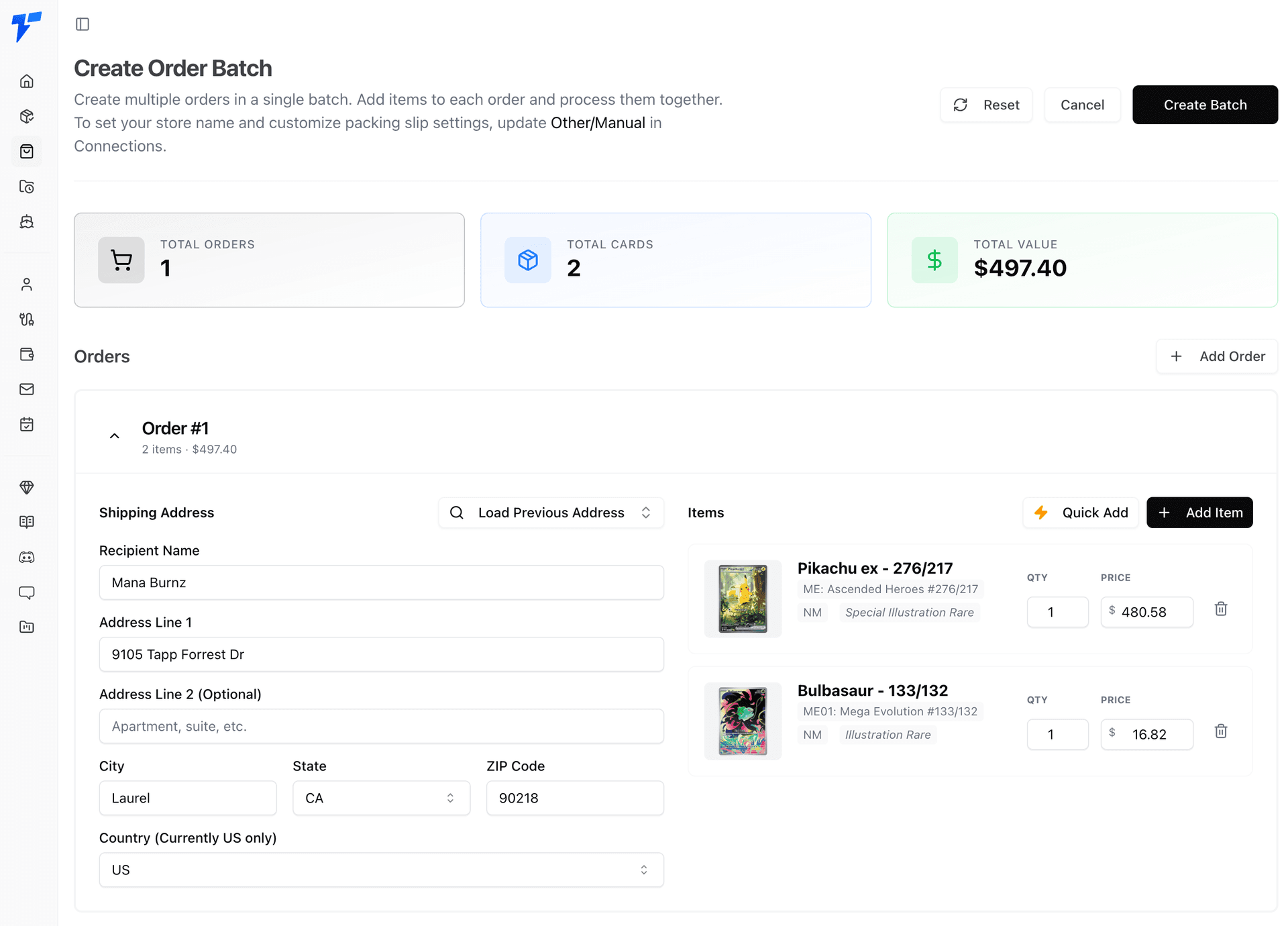
From the sidebar, click Create Order. You'll land on the Create Order Batch page. A batch can contain a single order or many — they'll all be processed together once submitted.
At the top of the page you'll see the live Batch Summary — it tracks your total number of orders, total card count, and total batch value as you build.
Fill in the Shipping Address
Each order card has a Shipping Address section. Fill in the recipient's name, street address, city, state, and ZIP code.
Add Items
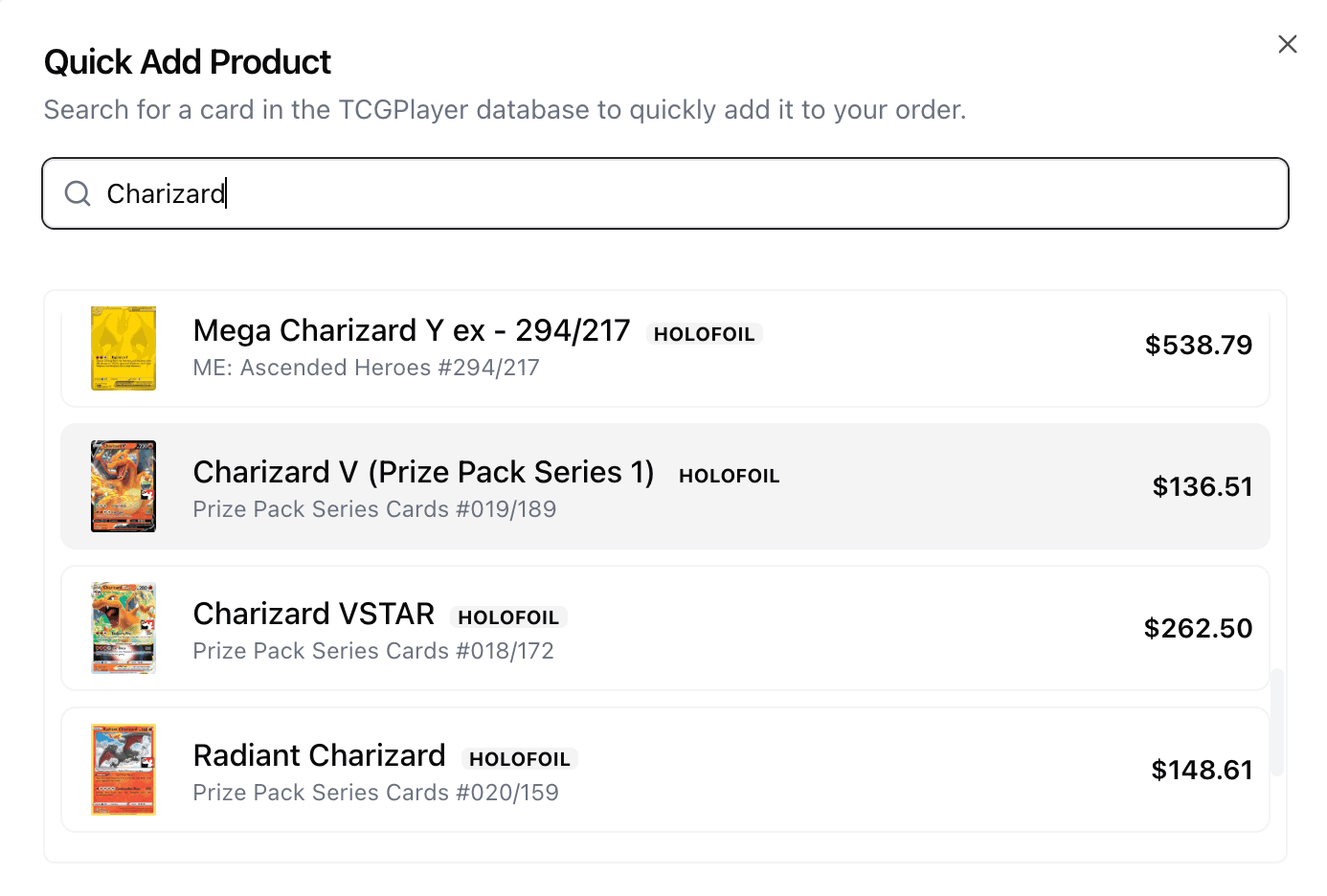
Below the shipping address, click Add Item. You have two ways to add items to an order:
Add More Orders to the Batch
Need to ship to multiple people at once? Click Add Order at the top of the Orders section to append a new order card to the batch. Each order has its own shipping address and item list. The Batch Summary at the top updates in real time.
To remove an order from the batch, click the Remove button on the order card. At least one order must remain in the batch.
Submit the Batch
Once all orders have at least one item, the Create Batch button in the top-right becomes active. Click it to submit. Quick Ship will create the batch and automatically redirect you to the Process Orders page where you can generate shipping labels and packing slips.