



Shipping BasicsFulfillmentNew Feature
Split Orders
Got a big order that needs to ship in more than one envelope? Split it into smaller pieces so you can pack and ship each part on its own.
What It Does
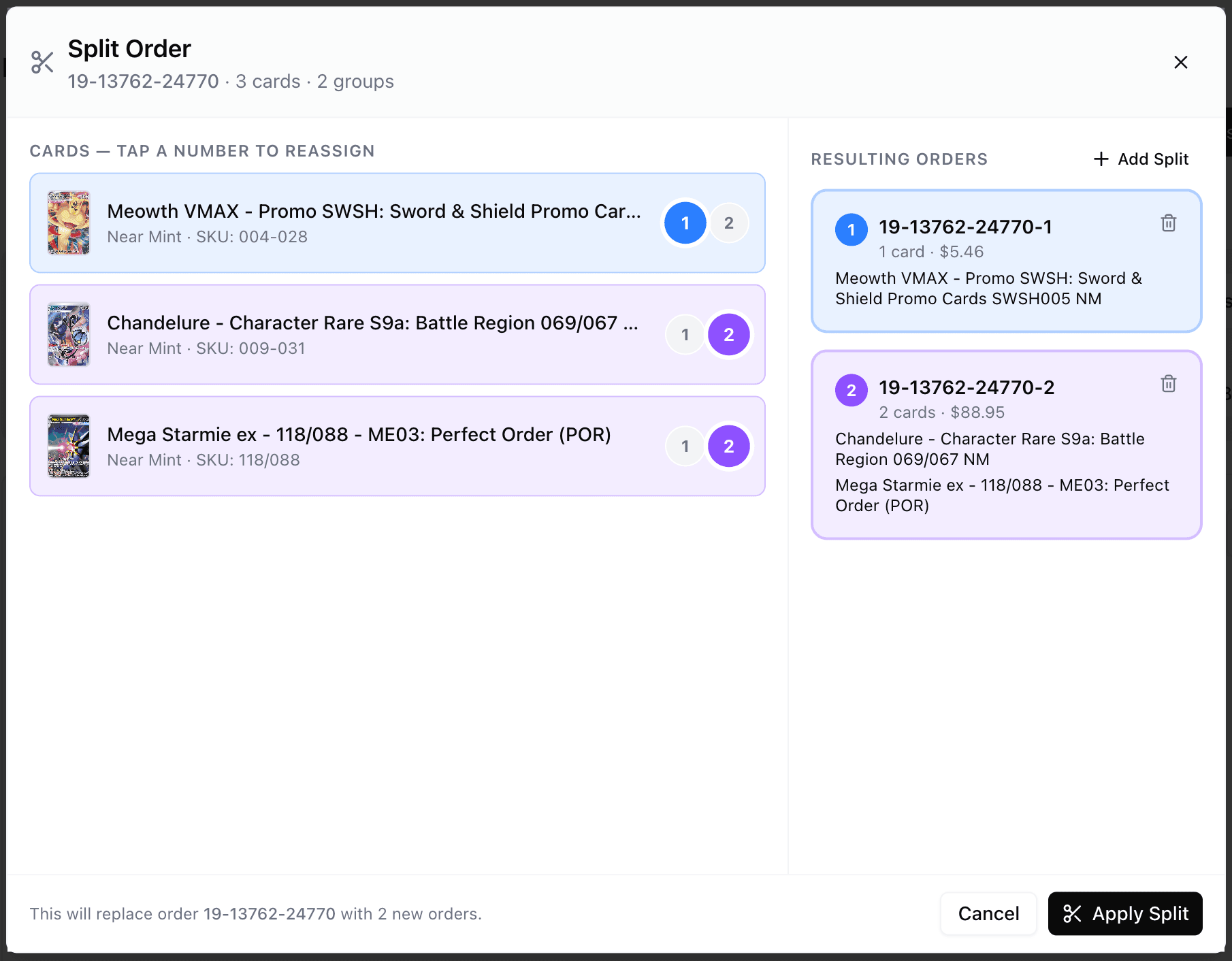
When you split an order, Quick Ship breaks it up into separate numbered orders — one for each envelope or package you plan to send. You decide which cards go into which shipment, and Quick Ship handles the rest.
See How It Works
When Is This Useful?
How to Do It
- Open the fulfillment screen.
- Find an order with more than one card and click Split Order.
- Click Add Group if you need more than one shipment.
- Tap the numbered button next to each card to move it into the right group.
- Check the summary to make sure everything looks right.
- Click Apply Split when you’re ready.
What Happens Next
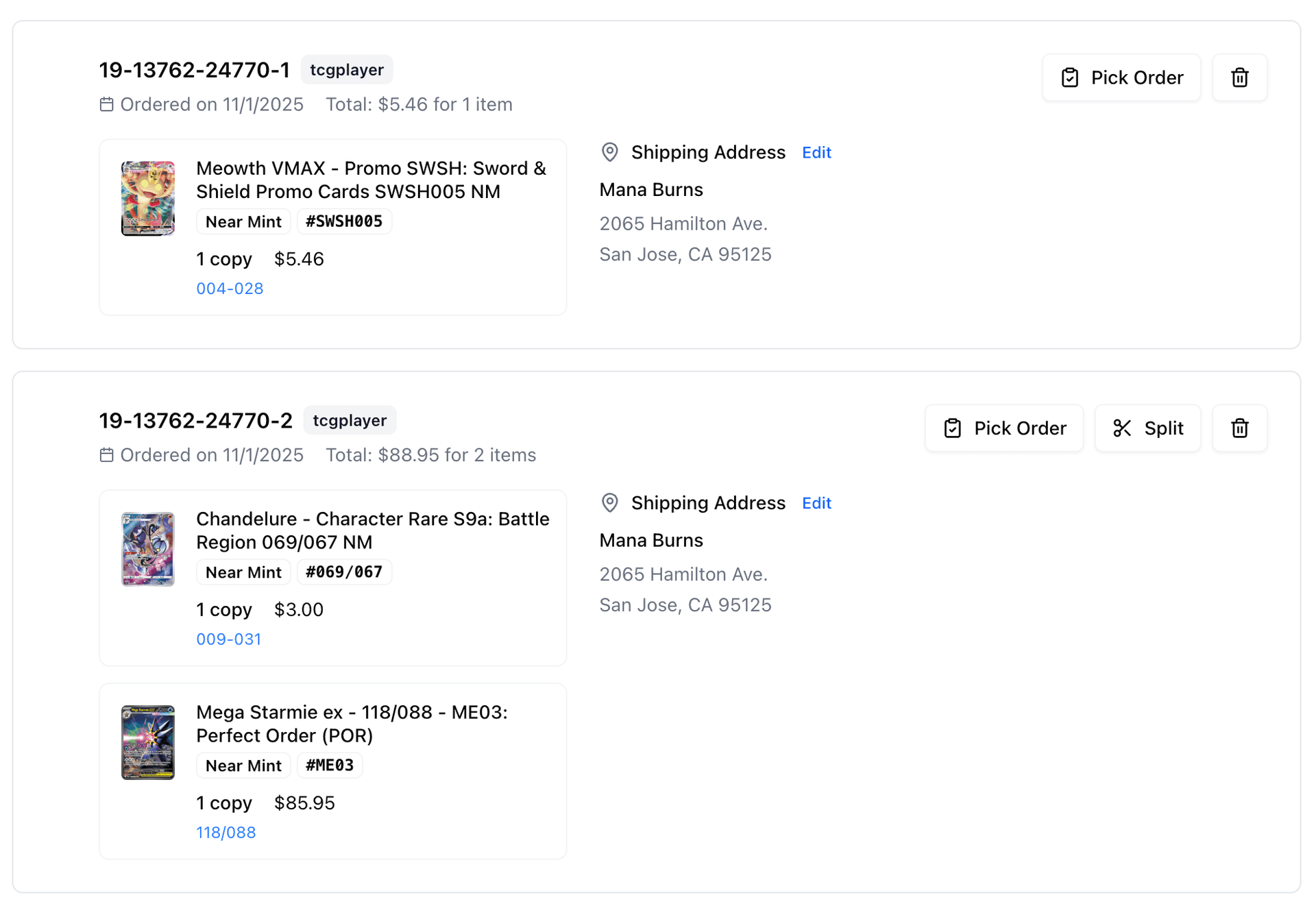
New order numbers
Each group gets its own order number so you can track them separately. They're based on the original so they're easy to find.
Each group is its own order
From here, you can buy labels and pack each one just like any other order — completely on your own schedule.
Pro Tip
Split before you buy labels — that way each shipment lines up with exactly what you're packing.